Calm 1–30 min
Room to slow down.
For a busy mind, a stressful day, winding down, or sleep. Gentle guidance leaves space to breathe and settle.
“Help me wind down and drift off to sleep.”

PERSONAL AUDIO, YOUR WAY
Find a little calm. Get ready for what’s next. Or simply take time to breathe.
Mooder is coming soon on the App Store. Explore the features below.
01 / PERSONAL SESSIONS
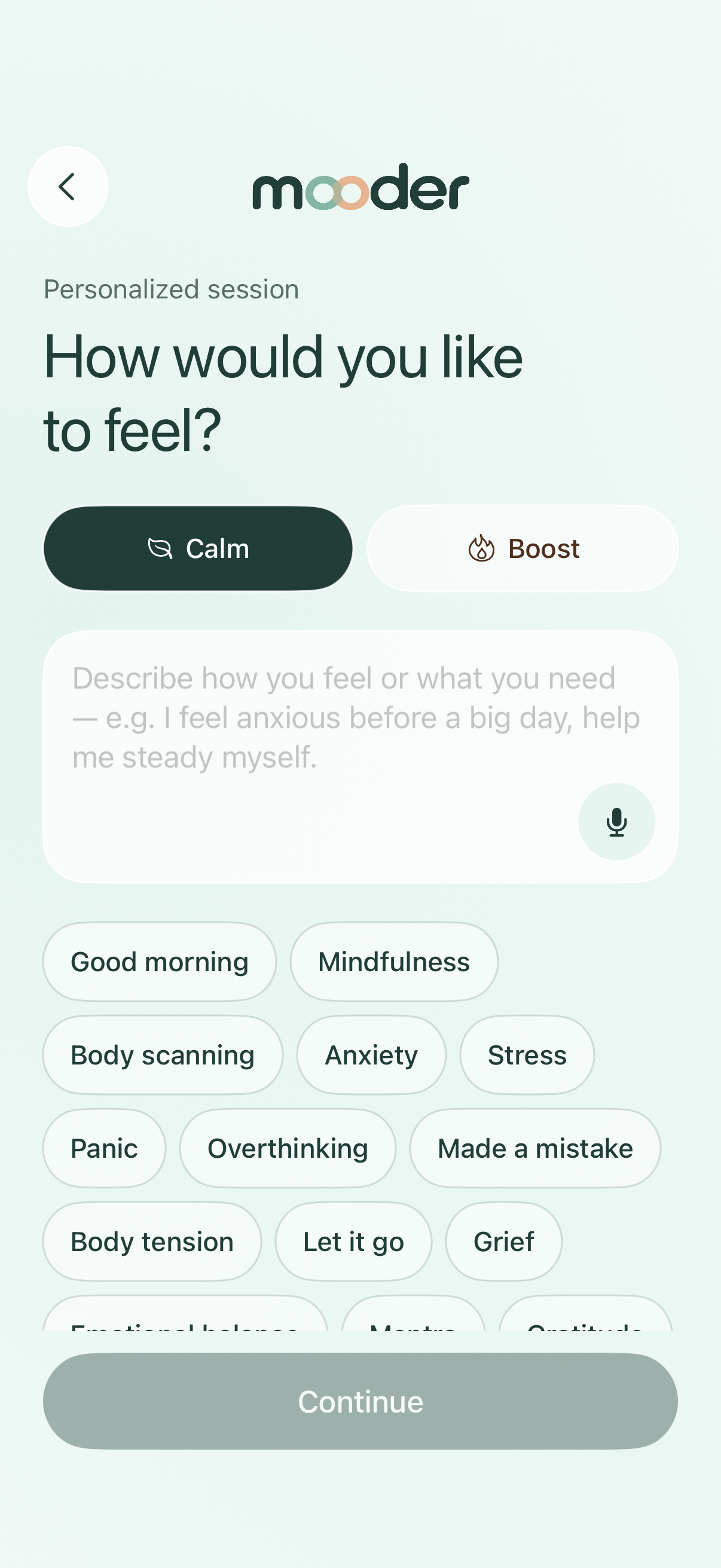
You bring the moment. Mooder creates a spoken session around it.
Calm 1–30 min
For a busy mind, a stressful day, winding down, or sleep. Gentle guidance leaves space to breathe and settle.
“Help me wind down and drift off to sleep.”
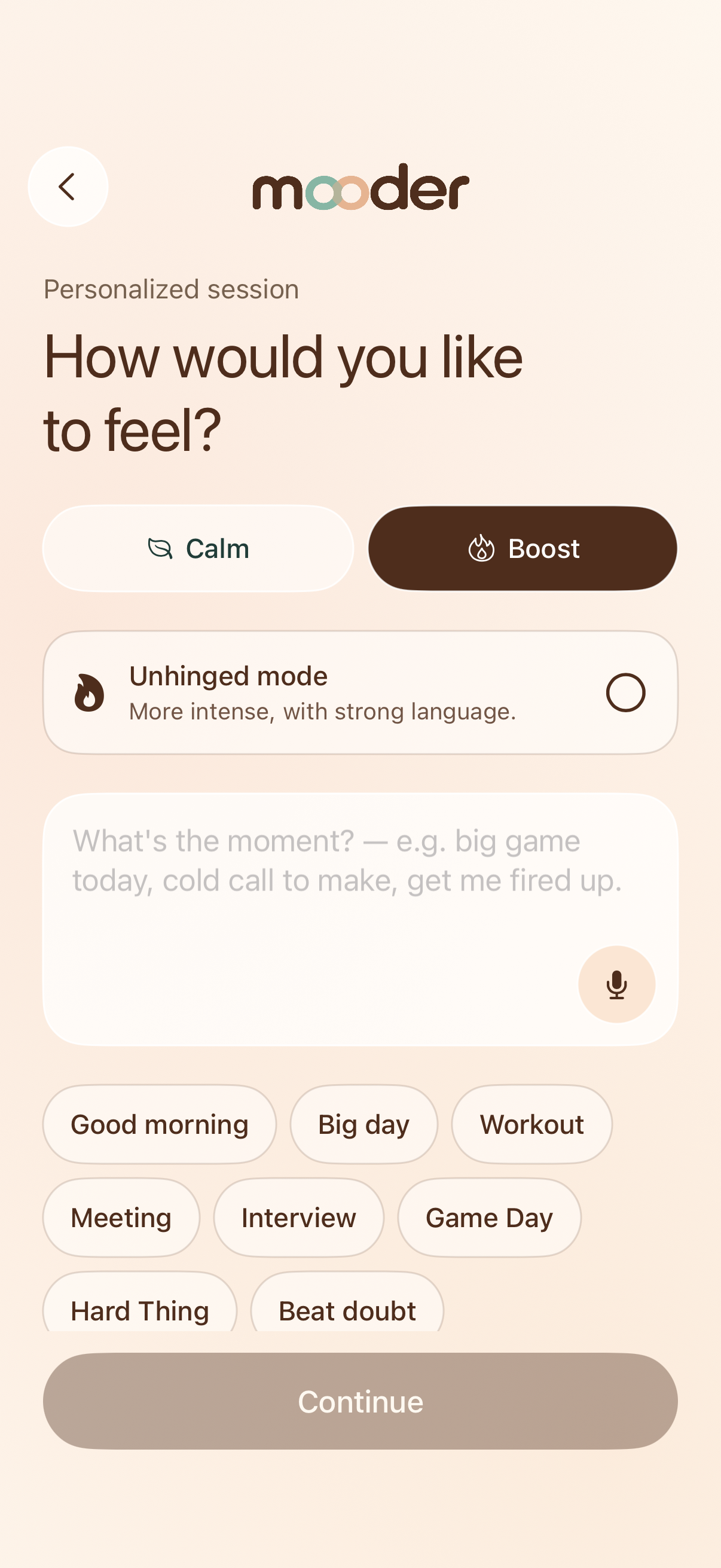
Boost 1, 2, or 3 min
A personal pep talk with music for a meeting, workout, interview, setback, or the next thing you need to do.
“Big meeting today — pump me up to walk in and own it.”
Choose Calm or Boost and a suggested theme, or type a short intention. You can also dictate with the microphone. Keep identifying details out; some custom wording may need to be simplified.
Choose your time, background sound, and gong. Mooder selects the practice and guidance spacing for your intention. Boost also offers optional Unhinged mode for a more intense pep talk.
Mooder maps supported requests to preset categories, then uses AI to compose fresh guidance from those categories and your settings. It turns the guidance into audio and shows its progress.
Pause, resume, or move through the audio when you need to. At the end, a quick check-in asks how you feel. You can also choose to save the session.
The updated app keeps your optional profile on your phone. You can edit or clear it in Settings, or leave it blank. Simple exclusions for practices you want to avoid may be shared without their original wording.
New sessions do not use your name, age or location. OpenAI receives preset categories and permitted settings, not your profile or original request.
Boost also offers “Unhinged mode” for a more intense, no-filter pep talk with strong language. Leave it off for the standard Boost style.
Listen to Calm and Boost previews02 / FREE TIMER
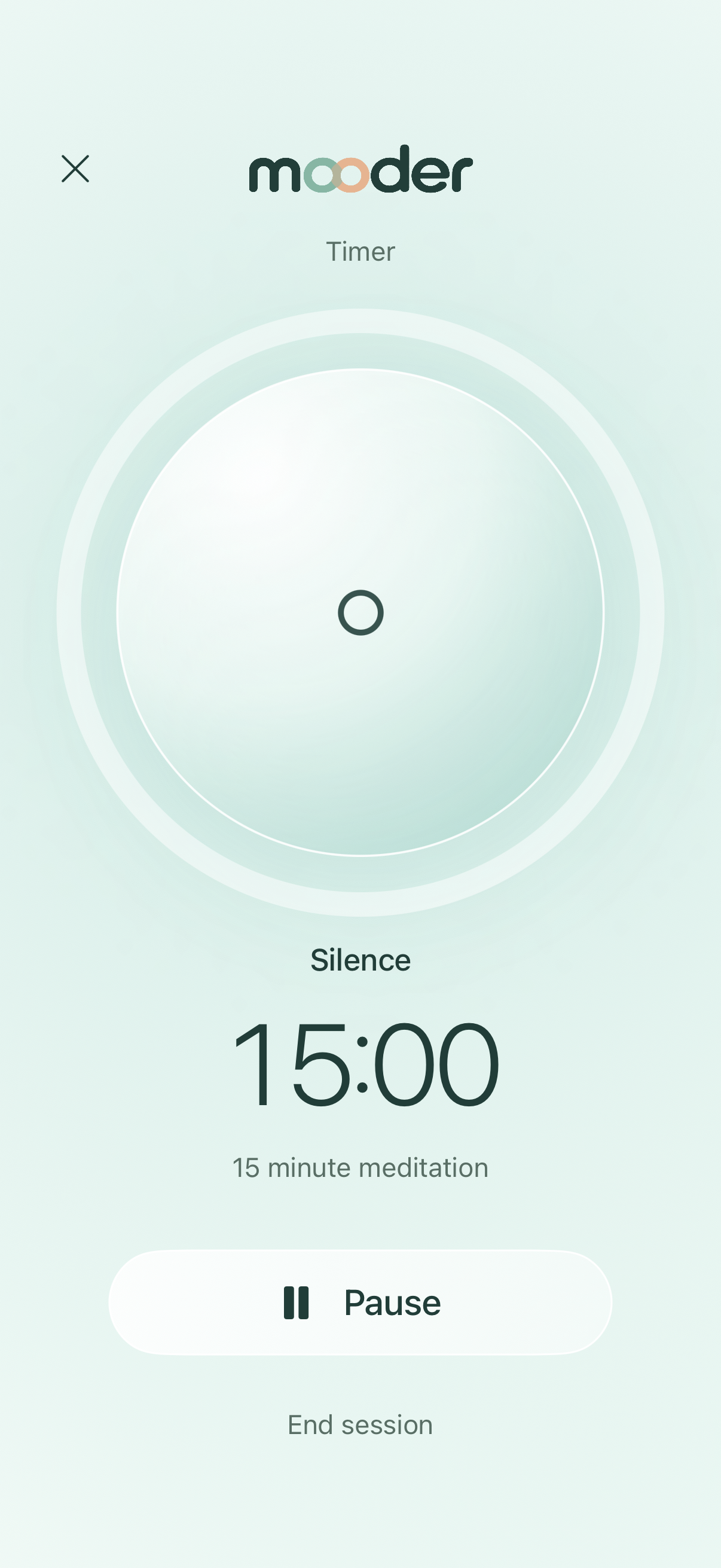
No spoken guidance needed. The meditation timer gives you a soundscape and room to practise at your own pace.
Free. Always.
The meditation timer is free to use, and always will be.
Pick a duration from the timer’s options, from 1 to 120 minutes, or choose ∞ for an open-ended session that you finish yourself.
Turn the gong on or off. Pause and resume as needed. Your timer setup is saved on the home screen, so the same sound and duration are ready next time.
03 / SAVED SESSIONS
Choose “Save this session” at the end of Calm or Boost. Find it again on the home screen.
The app keeps your 15 most recent saved personalized sessions on your phone. Timer setups are saved separately, with room for 12. Edit a timer’s settings or swipe to delete a session you no longer need.
04 / YOUR HISTORY
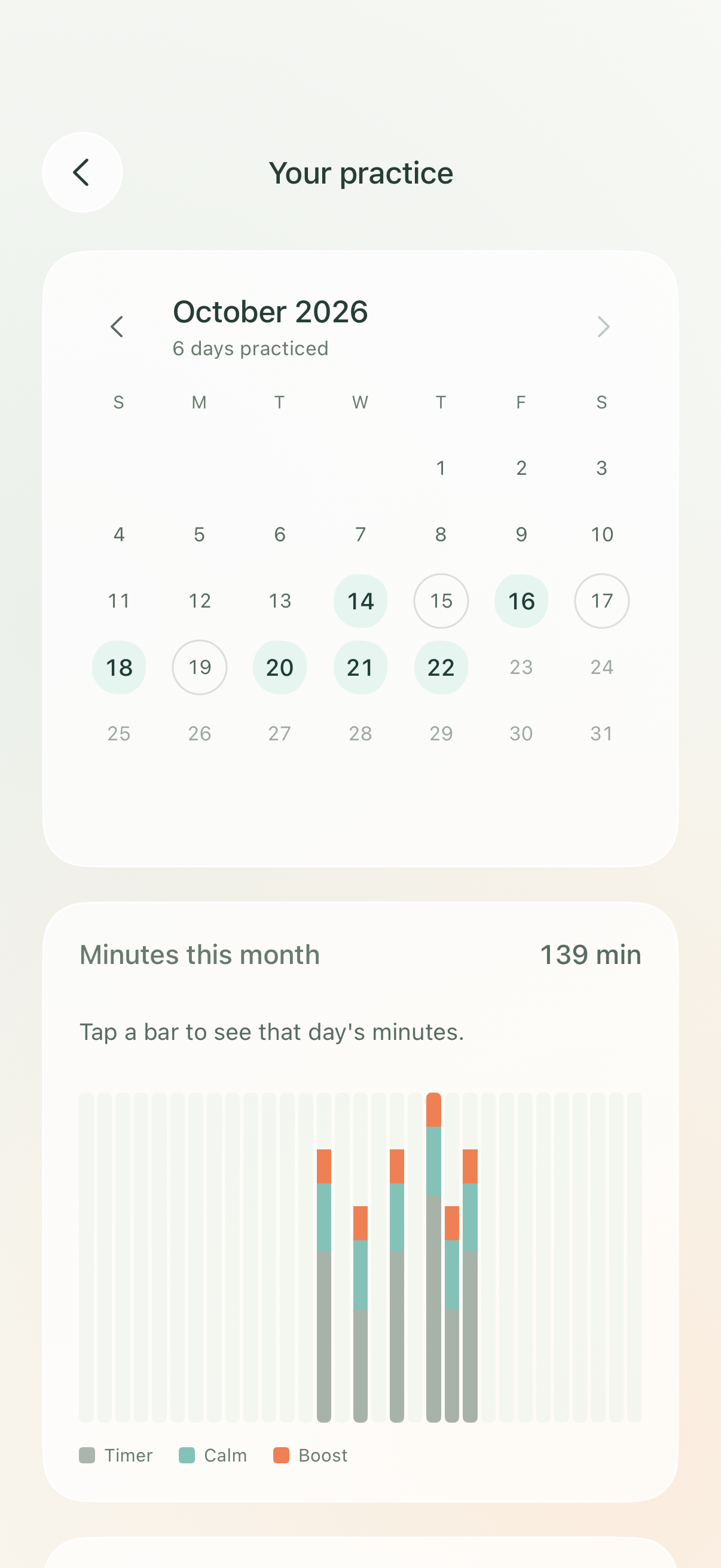
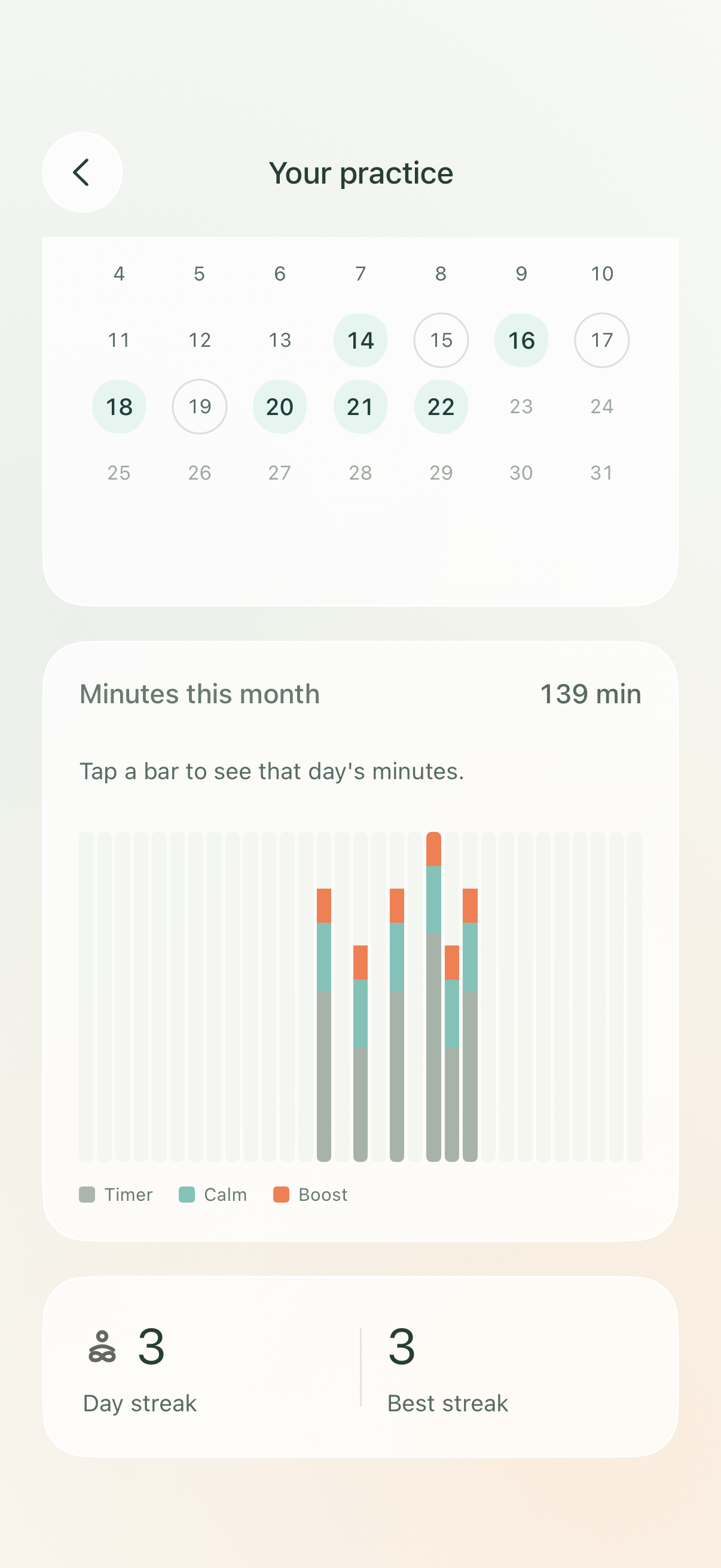
Open “Your practice” from the home screen to look back at your completed sessions.
See which days you practised and browse previous months. Timer, Calm, and Boost all count toward your practice.
The monthly chart shows your total minutes and separates Timer, Calm, and Boost. Tap or slide across the chart to see a day’s breakdown.
Follow your current day streak, best streak, and the number of days practised that month. Your practice history is stored on your phone.
YOUR GUIDE TO PERSONAL SESSIONS
Choose a starter such as Sleep, Stress, Focus, Meeting or Workout. You can also use a short supported intention. Mooder processes your words temporarily and gives the AI only preset categories and permitted settings.
Name the kind of support you want. You do not need to share your name, workplace, medical history or a detailed personal story.
If a request cannot be safely mapped to a supported category, Mooder asks you to simplify it or choose a starter. More detail does not always produce a more personalized session.
“Help me settle distractions and return to one thing with calm, clear focus.”
“Help me wind down and drift off to sleep.”
Standard Boost is a grounded pep talk. Optional Unhinged mode uses stronger language and profanity. Mooder supports everyday wellbeing; it is not a medical or crisis service.
Hear Calm and Boost examplesYOUR NEXT MINUTE
A quieter mind, a little momentum, or a moment to yourself.
Mooder processes your intention temporarily in its service and sends only preset categories and permitted settings to OpenAI. The updated app keeps your profile on your phone and asks for permission before generation. Replicate voices Calm; Fish Audio voices Boost. Our statistics contain daily totals without individual session histories. See what is shared and how to control it.